GDtoolsProxy: Geometry Dash Proxy Setup
This page is not about an ECHO Next player feature. It is a GDtoolsProxy setup guide for Geometry Dash players. The goal is simple: use GDPS Switcher inside Geometry Dash to add a private-server entry whose address points at the proxy endpoint.
Always use this exact proxy address:
http://38.246.252.230:60120/api/GeometryDashProxyBefore you start
Section titled “Before you start”You need Geode (the Geometry Dash mod loader) working first, so you can open the mod download page and install GDPS Switcher. If Geode is not installed yet, get Geode running before you come back to this page.
1. Download GDPS Switcher
Section titled “1. Download GDPS Switcher”Open the Geode mods page in Geometry Dash, switch to Download, and search for GDPS.
Find GDPS Switcher in the results and click Get to install it. If it is already installed, the button may show View or an installed state.
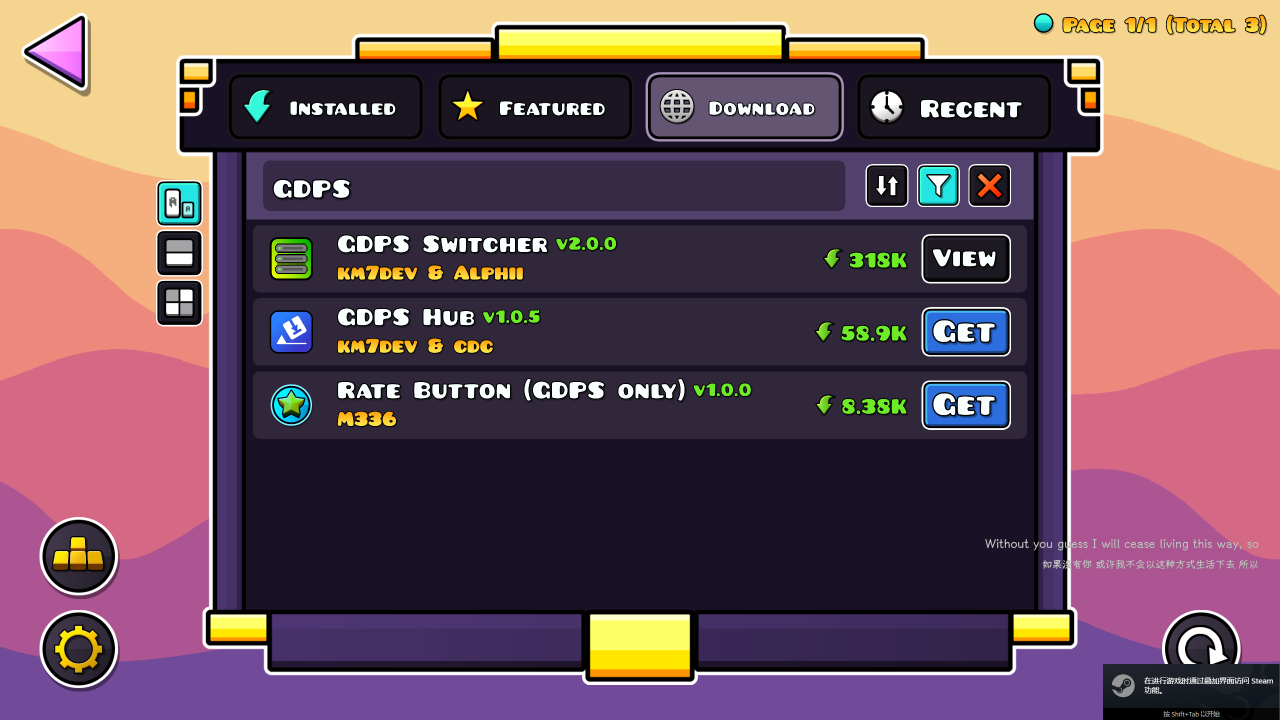
After it installs, restart the game when Geode prompts you, or return to the main menu and confirm the mod is active.
2. Open the server switcher
Section titled “2. Open the server switcher”Back on the Geometry Dash main menu, find the server-switch button added by GDPS Switcher. In the screenshot it is the green button on the right with a server icon and an arrow.
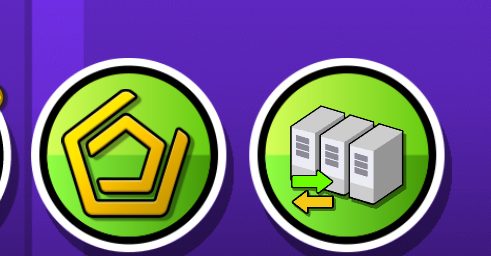
Clicking it opens the Private Servers page, where you can add, edit, and switch between server addresses.
3. Create a new proxy server
Section titled “3. Create a new proxy server”On the Private Servers page, click New. If an entry already exists, you can also click the pencil icon to edit it.
Fill in the edit window like this:
| Field | What to enter |
|---|---|
Server Name / Name | Anything you like, e.g. PROXY_LOCAL, GDtoolsProxy, CN Proxy |
Server URL | http://38.246.252.230:60120/api/GeometryDashProxy |
Save Name (Optional) / Save Name | Anything, or leave it empty |
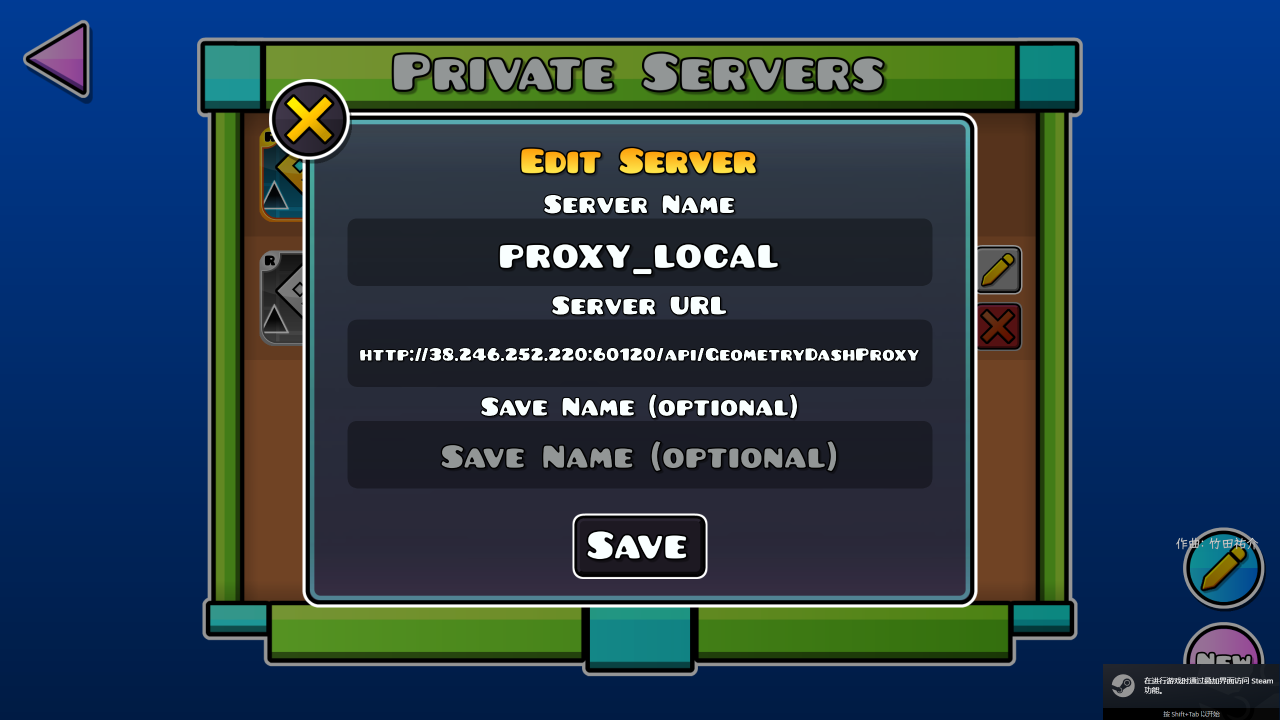
4. Save and switch
Section titled “4. Save and switch”Click Save.
Back on the Private Servers list, select the server you just created. From then on, Geometry Dash server requests go through the GDtoolsProxy address.
After switching for the first time, run a quick test:
- Open the online level list or search for a level.
- Check whether loading is faster or more stable than before.
- Test upload, download, leaderboards, comments, and anything else you normally use.
- If a feature misbehaves, switch back to the official server first to confirm whether the proxy is the cause.
Common issues
Section titled “Common issues”| Symptom | Check first |
|---|---|
| Nothing happens after switching | Confirm GDPS Switcher is installed and you restarted the game |
| Connection fails | Verify the Server URL was copied in full, especially http://, :60120, and /api/GeometryDashProxy |
| Level list works but some features fail | Switch back to the official server and compare; the proxy endpoint may be temporarily unstable |
| Not sure what to put in Name | Name and Save Name can be anything; they are only labels for your own list |
| Want the official server back | Return to Private Servers and switch to the default/official server, or temporarily disable GDPS Switcher |
Shortest version
Section titled “Shortest version”Just remember these steps:
- Install
GDPS Switcherfrom Geode. - Click the server-switch button on the main menu.
- Click
Newon thePrivate Serverspage. Name: anything.Server URL:
http://38.246.252.230:60120/api/GeometryDashProxySave Name: anything, or leave empty.- Click
Saveand select the server to start using it.