DSD Playback
This guide is for users who want to play DSD in ECHO Next. DSD playback depends on the DAC, driver, output mode, and volume chain. Confirm regular PCM playback first, then enable DSD options.
Short version
Section titled “Short version”- Confirm that your DAC really supports DSD at the target rate.
- Verify normal FLAC / WAV playback first.
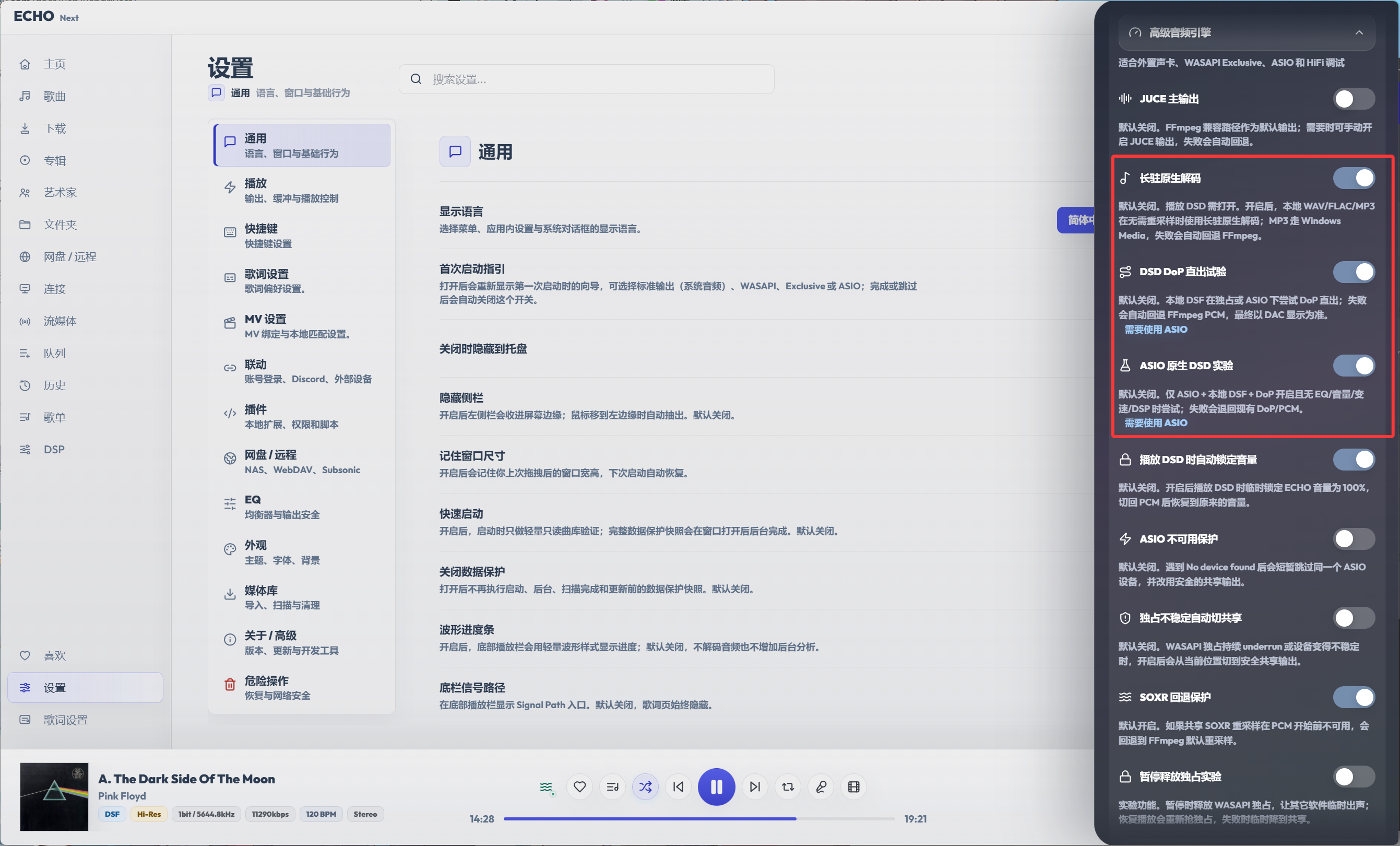
- In
Settings->General->Advanced audio engine, enable the DSD-related options. - Try
DSD DoP direct output experimentfirst. - Only try
ASIO native DSD experimentwith the DAC manufacturer’s official ASIO driver. - Keep digital volume at
100%for DSD playback and control loudness from your DAC, preamp, headphone amp, or amplifier. - Do not chase DSD blindly. Many DSD files in circulation are unofficial upsampled or transcoded versions, not native DSD recordings or trustworthy DSD masters.
Options to enable
Section titled “Options to enable”| Option | Recommendation | Meaning |
|---|---|---|
Persistent native decoding | Enable | Keeps native decoding available for DSD playback and falls back when needed. |
DSD DoP direct output experiment | Try first | Wraps DSD data in PCM frames so a DoP-capable DAC can recover DSD. |
ASIO native DSD experiment | Use carefully | Only for official DAC ASIO drivers and DACs that explicitly support Native DSD. |
Lock volume while playing DSD | Strongly recommended | Locks ECHO volume to 100% while DSD plays, then restores the previous volume for PCM. |
If you plan to use ASIO output, also make sure the current output chain in ECHO points at the ASIO device. Plain system output, Bluetooth headphones, and built-in laptop sound cards are usually not suitable targets for DSD direct output.
Choosing between DoP and Native DSD
Section titled “Choosing between DoP and Native DSD”DoP stands for DSD over PCM. It does not convert DSD into ordinary PCM music; it packs DSD data into frames that look like PCM for transport. A DoP-capable DAC recognizes the marker and recovers the DSD on its end.
Native DSD requires the player, ASIO driver, USB audio interface, and DAC to all pass DSD data and control information the way the device vendor intended. That chain is pickier about drivers and hits compatibility problems more often.
Recommended order:
- Confirm stable PCM playback first.
- Enable
DSD DoP direct output experiment. - If the DAC shows DSD and playback is stable, stay on DoP.
- Only if DoP is not enough and you have the official ASIO driver, try
ASIO native DSD experiment.
Do not chase DSD blindly
Section titled “Do not chase DSD blindly”DSD is a digital audio format, not an automatic quality guarantee. Many DSD files in circulation — especially ones of unclear origin — do not come from a native DSD recording chain, DSD post-production, or an official release master.
Common cases include:
- Upsampled to DSD from a CD or an ordinary PCM file.
- Converted from 24-bit / 96 kHz or 24-bit / 192 kHz PCM masters.
- Repackaged from files that were already compressed, restored, denoised, or loudness-processed.
- Format conversions done purely to make a DAC light up its
DSDindicator. - Store pages that shout
DSD64,DSD128,DSD256without stating the recording, mastering, or conversion source.
If the original recording, mix, master, or transcoding chain was weak, converting it to DSD does not create missing detail or turn it into a better master. At best it swaps the encoding shell; at worst, noise shaping, transcoding algorithms, filters, and level handling introduce new problems.
To judge whether a DSD file is worth keeping, look at:
- Whether it comes from a credible publisher.
- Whether the recording, mastering, or transcoding source is stated.
- Whether there is a real DSD production chain, not just the words “DSD version”.
- Whether it actually sounds better than the trustworthy PCM master you already have.
Chasing DSD blindly is pointless. A good recording, a good master, good gear, and a stable playback chain matter more than an extra DSD in the filename.
Why dongles and entry-level gear should not obsess over DSD
Section titled “Why dongles and entry-level gear should not obsess over DSD”To be fair, DSD is not a scam, and it can sound great. The real point is that DSD is an encoding and release format, not a quality passport. How good music ultimately sounds depends on the recording, mix, master, conversion chain, DAC architecture, analog output stage, power, clocking, and headphone or speaker matching — not on whether the filename says DSD64 / DSD128 / DSD256.
Many users read “this device supports DSD” as “this device is higher-end”. That is a common marketing sleight of hand. Several respected high-end digital-audio makers do not treat native DSD as a required selling point, and some deliberately convert DSD to high-precision PCM before processing, because they care more about the sound of the complete conversion chain.
Examples:
| Vendor / product | Attitude toward DSD | Notes |
|---|---|---|
| Berkeley Audio Design Alpha DAC Reference Series 3P | Does not chase a front-panel DSD badge | The official spec lists 32 kHz to 192 kHz, 24-bit inputs. Berkeley has explained that adding in-box DSD-to-multibit conversion just to display DSD could hurt the sound; they prefer converting DSD to 176.4 kHz / 24-bit PCM on the computer first. |
| Naim ND 555 | Plays DSD, but is not a native-DSD DAC | Naim’s flagship streamer. Its white paper explains that because the PCM1704 DAC chips are not DSD-compatible, DSD is converted to PCM in DSP before the DAC stage. “Supports DSD playback” and “full-chain native DSD” are different things. |
| Metrum Acoustics, Totaldac, and other NOS / R2R makers | Many products prioritize PCM, discrete resistor arrays, clocking, and the analog stage | These designs rarely lead with “how many times DSD”; they emphasize conversion architecture, power, analog output, and actual listening. |
| Multibit DACs like the Schiit Yggdrasil | Long-standing choice not to make DSD / MQA core selling points | Not exotic-priced gear, but representative: serious PCM multibit designs do not treat “can it light the DSD lamp” as the measure of a DAC. |
The lesson: DSD is not the entry ticket to high-end audio. If even makers positioned as high as Berkeley refuse to treat native DSD as mandatory, chasing DSD on a dongle DAC, entry-level USB DAC, built-in sound card, Bluetooth headphones, or budget desktop stack means even less.
What actually limits dongles and entry-level gear is usually not “how many times DSD”, but:
- Power headroom and interference rejection.
- Analog output stage quality.
- Drive power and load matching for your headphones.
- Noise floor, distortion, and channel consistency.
- Whether the system resamples, mixes, or rewrites volume.
- Whether the driver is stable and genuinely bypasses system audio processing.
- Whether the source itself comes from a trustworthy master.
Do not assume a dongle that prints DSD256 outclasses a DAC that simply does PCM well, and do not assume a .dsf file beats a trustworthy FLAC / WAV master. The differences people hear often come from master versions, volume matching, filters, the DAC’s output stage, or expectation — not the DSD format itself.
A more useful checklist:
- Is this music a credible release?
- Do the PCM and DSD versions come from the same master?
- Is the volume strictly matched?
- Did the DAC actually enter the correct playback path?
- Does blind or long-term listening really prefer it, rather than the panel light?
The conclusion is simple: DSD is fine to play with, but not worth worshipping. For most users, stable PCM playback, a trustworthy master, the correct output mode, and safe volume control matter more than lighting a DSD indicator on a dongle.
Upsampling to DSD1024 or higher
Section titled “Upsampling to DSD1024 or higher”If you want to upsample PCM to DSD1024 or even higher in real time, use software designed for high-quality upsampling and modulation, such as HQPlayer.
This is a different job from regular playback. DSD1024-class upsampling involves filters, noise shaping, modulators, CPU / GPU load, buffering, DAC capability, and driver stability. It is not just a matter of choosing DSD1024 in an output menu.
A better chain is:
ECHO manages the library and starts playback -> HQPlayer handles upsampling / modulation / output -> DAC decodesECHO focuses on library management, playback control, stable output, and safe fallback. HQPlayer is the specialized tool for advanced upsampling, DSD modulation, NAA, and high-end DAC output chains.
Why third-party ASIO drivers contradict DSD playback
Section titled “Why third-party ASIO drivers contradict DSD playback”DSD direct playback aims to send DSD data to the DAC with as few transformations as possible. It should avoid system mixing, resampling, digital volume, DSP, and unnecessary driver layers.
DSD and PCM are transported differently. PCM is a stream of multi-bit samples, and Windows mixers, volume controls, sample-rate converters, and generic drivers are mostly built around PCM. DSD is a very high-rate 1-bit stream that relies on noise shaping and downstream filtering. Ordinary digital volume, EQ, ReplayGain, or DSP usually requires converting DSD to PCM or remodulating it afterward.
Real DSD direct output needs the player, output API, driver, USB interface, and DAC to agree that the stream is DSD. For Native DSD, the driver may need to pass device-specific markers, rate information, channel layout, buffering behavior, and private control commands.
Third-party ASIO layers such as ASIO wrappers, virtual devices, or generic bridges usually do something else: they wrap WDM, WASAPI, or virtual PCM devices behind an ASIO-looking interface. They may help software that only exposes ASIO, but they do not magically provide the DAC manufacturer’s Native DSD protocol.
So the goal and the method conflict:
- You want fewer middle layers, but the wrapper adds another layer.
- You want device-level Native DSD, but the wrapper often only sees a generic PCM device.
- You want a bit-perfect or near bit-perfect DSD path, but the wrapper may resample, convert to PCM, or route through the system mixer.
- You want the DAC to detect DSD, but the driver layer may not pass DSD markers correctly.
In short:
Intended Native DSD path:Player -> official DAC ASIO driver -> DAC DSD receive path
Common third-party ASIO wrapper path:Player -> ASIO wrapper -> Windows generic audio path / virtual device -> DAC
The first path depends on device knowledge from the DAC vendor. The second path mostly gives software an ASIO-shaped output. Those are not the same problem, which is why using the second path to pursue the first result is contradictory.
Use the DAC manufacturer’s official USB audio driver and official ASIO driver when Native DSD matters. If you do not have one, use stable WASAPI / PCM playback instead of installing unknown ASIO drivers.
foobar2000 can use third-party ASIO, so why not ECHO
Section titled “foobar2000 can use third-party ASIO, so why not ECHO”Some users may point out that foobar2000 can use output components, plugins, or third-party ASIO wrappers. That is true, but it is not the same as ECHO making those paths an official support target.
foobar2000 is highly open and plugin-oriented. That freedom is useful for advanced users, but it also creates many unstable combinations: different ASIO components, wrapper drivers, Windows audio paths, DAC drivers, buffer settings, and device quirks. If one setup produces sound, it does not prove the path is correct DSD direct output, nor does it mean the same setup will be stable elsewhere.
ECHO prioritizes predictable playback, volume safety, fallback behavior, and understandable troubleshooting for regular users. Third-party ASIO wrappers are not a good support target because their behavior is hard to verify, their backend may still be WASAPI / WDM / a virtual device, and DSD markers or Native DSD controls may be lost or rewritten. If ECHO adds special handling for those wrappers, users may reasonably interpret that as an official recommendation or stability promise.
So ECHO does not aim to adapt every third-party ASIO wrapper. This is not because experimentation is impossible; it is because the path is not worth encouraging as a stable DSD solution. For DSD, use DoP first, and only use Native DSD with the DAC manufacturer’s official ASIO driver and clearly supported hardware.
Volume safety
Section titled “Volume safety”For DSD playback, keep ECHO, system, and software digital volume at 100%. Control the real listening level from the DAC, preamp, headphone amp, or amplifier.
Digital volume on DSD usually requires converting DSD to PCM or applying special processing and remodulation. That breaks the idea of DSD direct output.
Recommended:
- Enable
Lock volume while playing DSD. - Turn the preamp, headphone amp, or amplifier down before starting DSD playback.
- After playback starts, raise the preamp volume slowly to a comfortable level.
- Do not control DSD loudness with ECHO’s software volume, the system volume, or keyboard volume keys.
100% digital volume does not mean listen at maximum loudness. It means the software must not rewrite the digital signal. The place to control volume is the analog preamp, headphone amp, amplifier, or the DAC’s own hardware volume.
Recommended first test
Section titled “Recommended first test”- Connect the DAC and install the official driver.
- Play a normal FLAC file first.
- Enable
Persistent native decoding. - Enable
Lock volume while playing DSD. - Enable
DSD DoP direct output experiment. - Leave
ASIO native DSD experimentoff at first. - Turn down the DAC, preamp, or amp volume.
- Play a DSF / DFF file.
- Check whether the DAC display indicates DSD.
- If you hear noise, silence, stutter, or the DAC does not detect DSD, stop and return to PCM playback for troubleshooting.
If DoP works reliably and the DAC displays DSD correctly, you do not need to chase Native DSD. Stability and safe volume control matter more than enabling every experimental switch.
How to roll back when things break
Section titled “How to roll back when things break”For silence, crackling, half-speed, double-speed, stutter, failed track changes, or a vanished device, roll back in this order:
- Stop playback.
- Turn off
ASIO native DSD experiment. - Turn off
DSD DoP direct output experiment. - Switch back to a normal PCM file for testing.
- Change the output mode back to
WASAPI Sharedor the system default output. - Restart the DAC or replug the USB cable.
- If needed, roll back or reinstall the DAC’s official driver.
Do not change the driver, DSD options, sample rate, and volume all at once. One variable at a time is both the fastest and the most reliable.
Final reminder
Section titled “Final reminder”DSD is one playback-chain hobby, not a feature every user must enable. Dongle DACs, Bluetooth headphones, built-in sound cards, virtual audio devices, and third-party ASIO wrappers are usually not appropriate targets for DSD direct output.
Do not upgrade your files just because you saw a DSD suffix. Many DSD files are unofficial upsamples, transcodes, or repackages — a pretty format number does not mean a better recording or master.
What actually matters: a trustworthy source, device support, official drivers, a stable chain, full-scale digital volume, and controlling real loudness safely with a preamp. Get those right first, then talk DSD.